





Hot Guide & Tips


Software Testing
Please download Test resources to test & compare Moyea SWF To Video Converters with other SWF converters!
1. Music flash controlled by script:
Download Beautiful.swf
2. Interactive game flash:
Download GangsterPursuit.swf
Download CrusaderTrank.swf
More test resources and info...







How to Play Flash SWF on Samsung Galaxy Tab?
Apple iPad 2 is not the only thing that you can use to practise your thumbs and fingers, especially after the debut of Samsung Galaxy Tab on 2 September 2010 at the IFA in Berlin.
Samsung Galaxy Tab is for sure not the clone version of iPad and any existing tablets in the market because it aims to provide better tabbing experiences, powered by the better features below.
Features |
Details |
Photography |
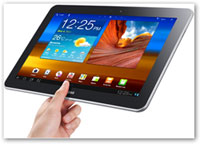
Better Design |
The thinnest and lightest tablet with just 565 grams and 8.6mm slim. |
|
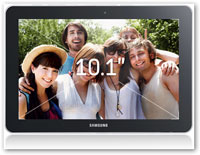
Better Screen |
HD 10.1’’ with 1280x800 WXGA and 149 ppi display |
|
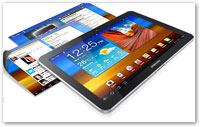
Better Home Screen |
A customizable Live Panel home screen experience |
|
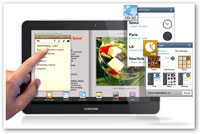
Better Multi-tasking |
Mini Apps allows an easy access to commonly-used applications |
|
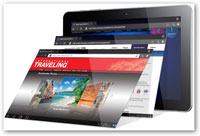
Better Web Browsing |
Browse thousands of websites without limitations and with Adobe Flash Player support |
|
Better Speed |
Both HSPA+ and WiFi guarantees the fast and stable Internet connection |
|
Better Reading |
Readers Hub gives access to millions of book titles, newspapers and magazines |
|
Better Music |
Music Hub provides extensive catalog of popular and classic songs |
|
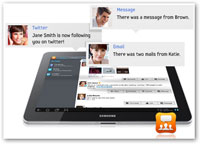
Better Communication |
Social Hub: all-in-one portal to multiple email, instant messaging, and social networking accounts |
|
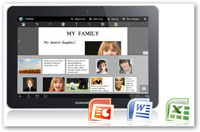
Better Office |
Polaris Office: get your work down from anywhere including PPT, Word and Excel |
|
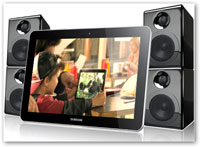
Better Multimedia |
Full HD playback and dual speakers surrounding sound |
|
Better Imaging |
Both front and rear facing cameras are perfect for video chat and picture capture |
|
Better Accessories |
The right add-ons like keyboard case or desktop dock can help you get more out of the tablet experience |
|



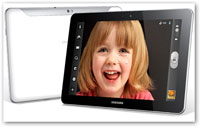
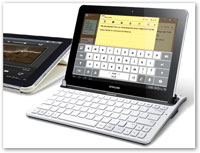





Price: $99.95


As you can see from above, Adobe Flash Player support is no doubt one of the highlighted features. And that is what Apple can not compete! With Flash support, you can view your favorite Flash content directly on Samsung Galaxy Tab!
Alternatively, we will introduce another way here to make Flash playable on Samsung Galaxy Tab and surprisingly, on iOS devices as well.
A n Indirect Method to Play Flash on Samsung Galaxy Tab: Convert to Video
You need to have a Flash SWF to Video Converter.
Play Flash SWF files on Samsung Galaxy Tab indirectly by converting it to regular video/audio/image formats, which are acceptable for Galaxy Tab. Do not worry about the Flash animation effect because it will be retained 100% in the output video or image format and you can even make it better! The optional conversion mode and the advanced output profile settings are the key. Let us have a look at how it works!
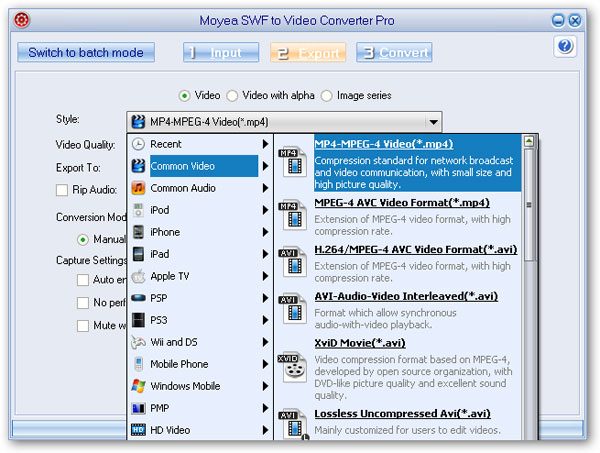
Step 1: Choose your desired video format from Style drop-down menu.
Step 2: Choose the conversion mode, customize capture and profile settings to guarantee a best-quality Samsung Galaxy Tab format output.
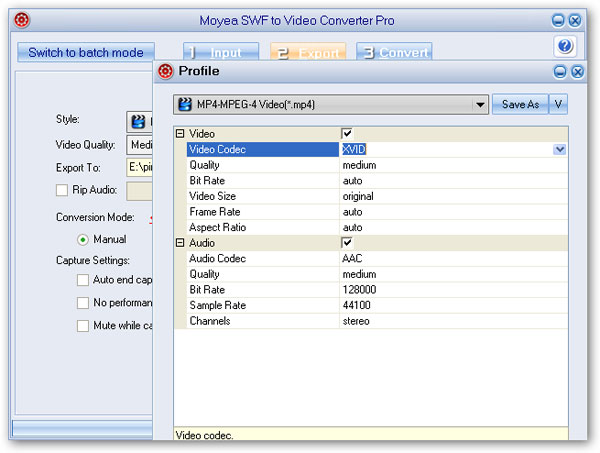
Note: Samsung Galaxy Tab supports these video codecs: WMV9, WMV7, WMV8, H.264, MPEG4, Xvid, DivX, H.263, VP8
Step 3: You can also convert the Flash file to other popular video, audio or image formats and click Convert to start. The SWF to Samsung Galaxy Tab conversion will start officially in a couple of seconds after the performance testing.
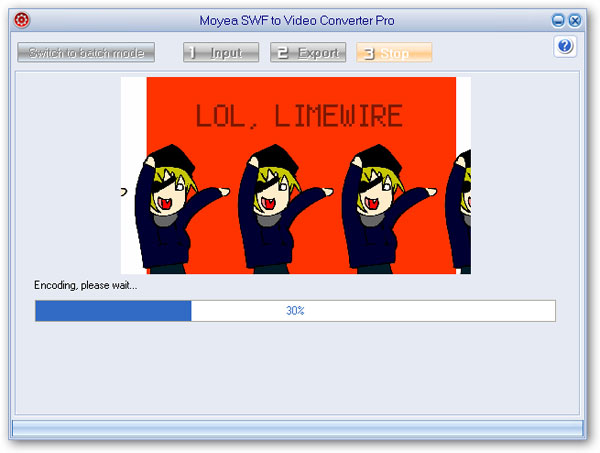
Step 4: Import the converted video to your Samsung Galaxy Tab via 30-pin dock connector port and enjoy the Flash content with better details on amazing 10.1’’ wide screen.


You may also be interested in these hot tips
- Convert Flash SWF on iPad
- Convert Flash SWF on iPod
- Convert Flash SWF on Apple TV
- Convert Flash SWF on iPhone
- Convert Flash SWF on PSP
- Convert Flash SWF on Zune
- Play Flash SWF on iPad 2
- 3 Ways to Play Flash SWF on iPhone 3GS
- 3 Methods to Play Flash SWF on iPhone 4
- 3 Ways to Play Flash SWF on iPhone 5
- 4 Methods to Play Flash SWF on iPod touch
- Play Flash SWF on Samsung Galaxy Tab
- Play Flash SWF on Samsung Galaxy S2
- How to Play Flash SWF Files on Android Devices
- How to Play Flash SWF Files on iOS Device
- How to Play Flash SWF Files on HTC Titan
- How to Play Flash Animations on Nook Tablet & Nook Color
- How to Play Flash Animations on Wii
- How to Play Flash SWF Files on Motorola Xoom 2
- Play Christmas Flash Ecard SWF Files on Kindle Fire
- Play Flash SWF on Google Android 4.0
- How to play Flash SWF on Nokia Lumia 900
- How to Play Flash SWF Files on iPad 3
- How to Play Flash SWF on HTC Ville and HTC Edge
- How to Play Flash SWF Files on The new iPad
- How to Play Flash SWF on BlackBerry Bold Series Smartphones
- How to Play Flash on iPad Mini
- How to Play Flash on Samsung Galaxy S3
- How to Play Flash on Google Nexus 7
- How to Record 2012 Olympic Events as Flash for HTC One X
- Flash on Galaxy Note 2 - How to Play SWF on Galaxy Note 2
- How to Play Flash on Kindle Fire HD
- Flash for Optimus G - Play SWF on LG Optimus G
- 2 Methods to Play Flash on Acer Iconia Tab 110
- Flash for Galaxy S3 Mini - Play Flash on Samsung Galaxy S3 Mini
- 2 Methods to Play Flash on Asus PadFone 2
- SWF to J Butterfly - Play Flash on HTC J Butterfly
- SWF to Xperia T - Play Flash on Sony Xperia T
- SWF for Nexus 4 - Play Flash on LG Nexus 4
- 2 Methods to Play Flash on Surface RT
- Flash for iPad - Play SWF on iPad 4
- SWF for Nexus 10 - Play Flash on Google Nexus 10
- Flash for VivoTab RT - Play SWF on Asus VivoTab RT
- Flash for Venice - Play SWF on LG Venice
- Flash for Droid DNA - Play SWF on HTC Droid DNA
- Flash for Lumia 920 - Play SWF on Nokia Lumia 920
- Flash for lumia 822 - Play SWF on Nokia Lumia 822
- How to Play Flash Movie on LG Mach
- How to Play Flash on Lumia 620
- How to Play Flash on Huawei Ascend D1
- How to Play Flash on ZTE Nubia Z5
- How to Play Flash on Huawei Ascend Mate
- Flash to Xperia ZL - Play Flash on Sony Xperia ZL
- Flash to Xperia Tablet Z - Play Flash on Sony Xperia Tablet Z
- How to Play Flash on HTC One
- 3 Methods to Play Flash on Asus FonePad