





Hot Guide & Tips


Software Testing
Please download Test resources to test & compare Moyea SWF To Video Converters with other SWF converters!
1. Music flash controlled by script:
Download Beautiful.swf
2. Interactive game flash:
Download GangsterPursuit.swf
Download CrusaderTrank.swf
More test resources and info...







How to Play Flash SWF on HTC Titan?





Price: $99.95


HTC Titan is HTC’s flagship Smartphone running on Mango system, released in October, 2011. It features a 1.5 GHz Scorpion processor, 512MB of RAM, 8MP of primary camera, 1.3MP front-camera for video call, 16GB of internal storage, DLNA support, Bluetooth 2.1, WiFi and GPS.
For those who want to view Flash SWF files with HTC Titan, the large 4.7-inch (800 x 480) screen with 199ppi density would be good news. However, HTC Titan comes with no Adobe Flash support. If you want to play SWF on HTC Titan, you will need to convert SWF to HTC Titan supported video formats like MP4, 3GP, MPEG-4, H.264, etc. using SWF to HTC Titan converter and import the converted video to HTC Titan for playback.
With super easy and intuitive user interface, simply in 3 steps you can enjoy SWF files on HTC Titan. Besides, video parameters like Frame Rate, Bit Rate, Codec and Resolution can be edited to guarantee the best output quality.
Step 1: Import Flash SWF files.
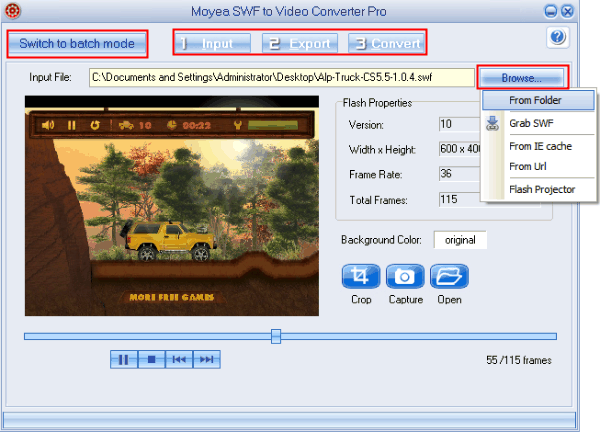
Download and install Moyea SWF to Video Converter and it provides 5 options to add SWF files. On the main interface, click “Browse..” and you can import SWF files from both local disk and online: From Folder, Grab SWF, From IE cache, From Url and From Projector. Click the “Switch to batch mode” button on the top left so that you can convert multiple SWF files to HTC Titan videos at one time.
Step 2: Convert SWF to MP4.
Jump to “2 Export” Interface. Choose a HTC Titan supported format such as MP4 as output format in the “Style” drop-down list. Click “Export to” to specify an output folder for the converted video file.
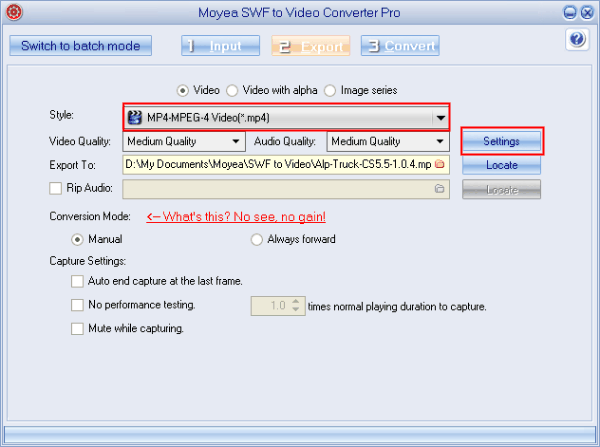
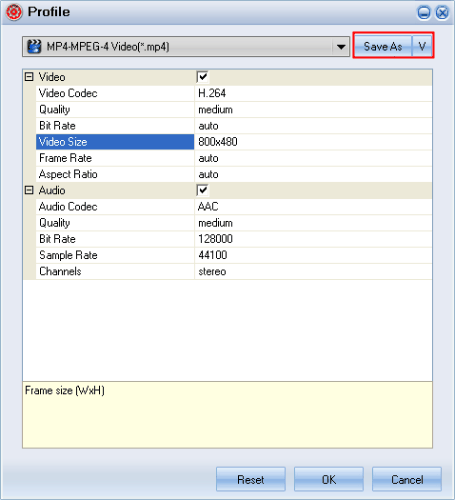
Click “Settings" to adjust advanced video parameters like Codec, Bit Rate, Frame Rate, Sample Rate, Quality, etc. Save your changes as new profile, for example “HTC Titan MP4 video” for future use.
Step 3: Now start conversion.
After all the settings are done, click the “3 Convert” tab to start conversion. The output MP4 video can be playback on HTC Titan freely and efficiently.


You may also be interested in these hot tips
- Convert Flash SWF on iPad
- Convert Flash SWF on iPod
- Convert Flash SWF on Apple TV
- Convert Flash SWF on iPhone
- Convert Flash SWF on PSP
- Convert Flash SWF on Zune
- Play Flash SWF on iPad 2
- 3 Ways to Play Flash SWF on iPhone 3GS
- 3 Methods to Play Flash SWF on iPhone 4
- 3 Ways to Play Flash SWF on iPhone 5
- 4 Methods to Play Flash SWF on iPod touch
- Play Flash SWF on Samsung Galaxy Tab
- Play Flash SWF on Samsung Galaxy S2
- How to Play Flash SWF Files on Android Devices
- How to Play Flash SWF Files on iOS Device
- How to Play Flash SWF Files on HTC Titan
- How to Play Flash Animations on Nook Tablet & Nook Color
- How to Play Flash Animations on Wii
- How to Play Flash SWF Files on Motorola Xoom 2
- Play Christmas Flash Ecard SWF Files on Kindle Fire
- Play Flash SWF on Google Android 4.0
- How to play Flash SWF on Nokia Lumia 900
- How to Play Flash SWF Files on iPad 3
- How to Play Flash SWF on HTC Ville and HTC Edge
- How to Play Flash SWF Files on The new iPad
- How to Play Flash SWF on BlackBerry Bold Series Smartphones
- How to Play Flash on iPad Mini
- How to Play Flash on Samsung Galaxy S3
- How to Play Flash on Google Nexus 7
- How to Record 2012 Olympic Events as Flash for HTC One X
- Flash on Galaxy Note 2 - How to Play SWF on Galaxy Note 2
- How to Play Flash on Kindle Fire HD
- Flash for Optimus G - Play SWF on LG Optimus G
- 2 Methods to Play Flash on Acer Iconia Tab 110
- Flash for Galaxy S3 Mini - Play Flash on Samsung Galaxy S3 Mini
- 2 Methods to Play Flash on Asus PadFone 2
- SWF to J Butterfly - Play Flash on HTC J Butterfly
- SWF to Xperia T - Play Flash on Sony Xperia T
- SWF for Nexus 4 - Play Flash on LG Nexus 4
- 2 Methods to Play Flash on Surface RT
- Flash for iPad - Play SWF on iPad 4
- SWF for Nexus 10 - Play Flash on Google Nexus 10
- Flash for VivoTab RT - Play SWF on Asus VivoTab RT
- Flash for Venice - Play SWF on LG Venice
- Flash for Droid DNA - Play SWF on HTC Droid DNA
- Flash for Lumia 920 - Play SWF on Nokia Lumia 920
- Flash for lumia 822 - Play SWF on Nokia Lumia 822
- How to Play Flash Movie on LG Mach
- How to Play Flash on Lumia 620
- How to Play Flash on Huawei Ascend D1
- How to Play Flash on ZTE Nubia Z5
- How to Play Flash on Huawei Ascend Mate
- Flash to Xperia ZL - Play Flash on Sony Xperia ZL
- Flash to Xperia Tablet Z - Play Flash on Sony Xperia Tablet Z
- How to Play Flash on HTC One
- 3 Methods to Play Flash on Asus FonePad