





Hot Guide & Tips


Software Testing
Please download Test resources to test & compare Moyea SWF To Video Converters with other SWF converters!
1. Music flash controlled by script:
Download Beautiful.swf
2. Interactive game flash:
Download GangsterPursuit.swf
Download CrusaderTrank.swf
More test resources and info...







How to get a video from geevee.com to YouTube?





Price: $99.95


All the things on Gamevee.com are Shockwave Flashes. Some friends may want to upload them to YouTube to share with friends. YouTube doesn’t accept SWF files, it accepts video format in AVI, WMV, MOV, MPEG, and MP4, etc. So the first thing is to convert SWF to AVI, SWF to WMV, SWF to MOV, or SWF to MPEG, etc. Generally, there are two ways for this.
1. Download the SWF to your computer and convert it to video. On the gamevee web page, find “Embed”, copy and paste the codes in the box to a text book, and find “value=xxx”, The “xxx” is the URL of the SWF. Copy and paste the URL to your downloading tool and download the SWF to your computer, and then use some sort of SWF to video converter to convert the SWF to AVI or others and then upload it to YouTube.
2. Convert SWF to AVI or others directly without downloading. Use Moyea SWF to Video Converter Pro to convert SWF to AVI, SWF to WMV, SWF to MOV, SWF to MP4, etc., then upload the video to YouTube. This is much easier. Paste the URL to the program and 3 steps will convert SWF to AVI. This function is seldom available in other programs.
How to convert SWF to AVI with Moyea SWF to Video Pro?
1. Input. Open the program and click “V>From URL”, and paste the URL in the box.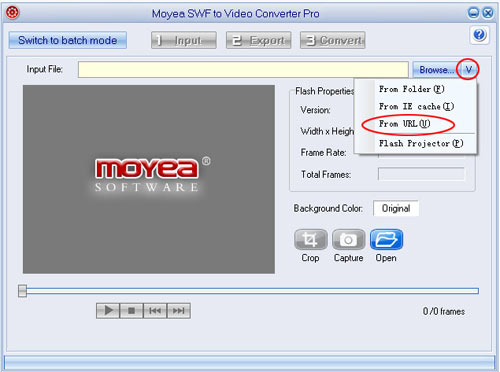
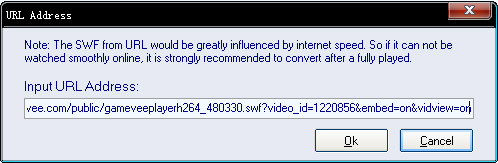
Crop: Click to crop the video dimension.
Capture: Click to snapshot for pictures.
Click “2 Export” to continue.
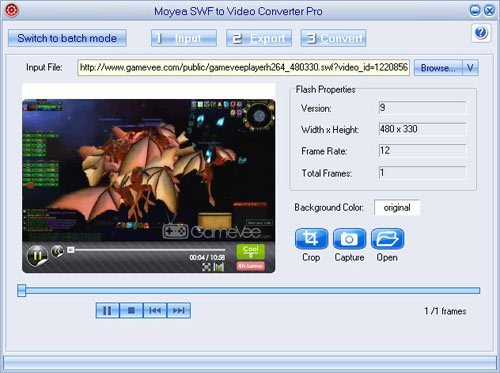
2. Export. Select “AVI” in “Style”. Set output folder in “Output”. Keep the rest in default. Click “3 Convert” to continue.
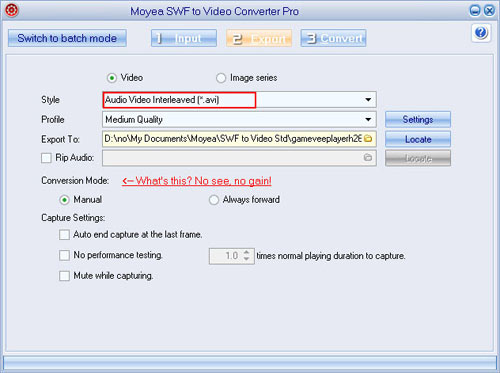
3. Convert. After “Performance testing”, click “Play and Capture” to play the SWF and the converter will start to capture the frames too. When the SWF plays to the position you want, click “Finish” to start the conversion, and done.

How to upload videos to YouTube?
Once you've finished editing your video, made sure it's less than 10 minutes, smaller than 1GB in size.
Click the “upload” button in the upper-right-hand corner of any YouTube page.
- Enter as much information about your video as possible, including Title, Description, Tags, and Category. The more information you include, the easier it is for users to find your video!
- Determine if you want your video set to Public or Private.
- Click the "Upload a Video..." button.
- In the next window, click the "Browse" button to browse for the video file. Select the file you want to upload.
- Click the "Upload Video" button.


